
Blender Studio官方出品的绘画风格 3D 笔触生成系统Brushstroke Tools v1.2.3
Brushstroke Tools 是由 Blender Studio 官方开发的一款专业级 Blender 扩展插件,专为需要实现手绘质感、风格化艺术表现以及非真实感渲染(NPR)的 3D 资产创作流程而设计。该插件的核心价值在于将传统数字绘画中自由、有机的笔触语言引入三维空间,通过程序化生成的几何节点(Geometry Nodes)系统,让艺术家能够在任意网格模型表面创建、管理和编辑多层 3D 笔触图层,从而彻底告别繁琐的手动摆放与逐一调整。这款工具提供了一套极其直观的交互界面,使得复杂的三维笔触堆叠工作变得像在平面软件中操作图层一样高效可控。在实际工作流中,Brushstroke Tools 主要提供两种功能互补的笔触图层类型:第一种是“填充层”(Fill Layer),它能够自动淹没(Flood)目标网格表面,根据模型拓扑结构和流动方向智能生成密集且富有节奏感的笔触阵列。用户可以通过绘制引导曲线来定义笔触的走向与韵律,使用快捷键 Ctrl+Alt+F 标记特定边线作为流动边界或断裂线,甚至指定某些面区域完全排除笔触的生成,从而实现局部留白或强调效果。第二种是“绘制层”(Draw Layer),这种模式允许艺术家直接在模型表面像使用画笔一样绘制曲线,每一条手绘曲线都会实时转化为具有体积感和方向性的实体笔触几何体。在绘制过程中,工具栏会动态显示颜色、粗细、抖动等关键参数供用户即时调整,极大提升了创作的自由度和反馈速度。除了几何层面的灵活控制,Brushstroke Tools 在材质管理方面同样表现出色,其内置的材质系统被细致地划分为三个逻辑模块:基础 PBR 属性控制模块负责调整金属度、粗糙度、法线强度等物理渲染参数,确保笔触在不同光照环境下都能呈现正确的材质响应;笔刷风格模块则提供了来自真实世界扫描的纹理库,涵盖油画、丙烯、粉彩、铅笔等多种传统媒介的笔触质感,用户只需一键即可切换整套视觉语言;效果模块进一步提供了遮罩、混合、风化等后期调整功能,让纹理表现更加细腻且富有层次感。值得注意的是,该插件的几何生成与渲染技术对硬件性能要求较高,官方明确建议使用高端工作站或游戏级显卡以确保流畅的交互体验。对于 Blender 4.2.0 至 4.2.3 版本的用户,安装扩展后可能需要重启一次 Blender 才能完整加载所有资产;而笔刷风格预览功能则仅支持 4.2.4 及以上版本。在使用 Cycles 渲染器时,由于笔触效果大量依赖重叠的透明平面,用户需要在高级面板中启用渲染设置操作符来增加透明反弹次数,以避免画面中出现黑色斑点。此外,针对填充层对流动曲线反应迟钝或失真的问题,官方 FAQ 指出这通常与模型缺少有效 UV 贴图或网格分辨率过低有关,建议先进行自动 UV 展开并适当提高表面细分级别。总体而言,Brushstroke Tools 为 Blender 用户开辟了一条从三维建模直通手绘风格渲染的高效管线,无论是游戏资产、动画短片还是概念设计,它都能帮助创作者以程序化的方式快速探索和迭代极具艺术感染力的视觉方案。欲深入了解该工具的完整功能与实战技巧,用户可以观看官方介绍视频、下载钓鱼小屋示例文件,或查阅 Blender Studio 提供的详尽文档与指导工作坊录像。
Set of tools for a painterly 3D brushstrokes workflow by the Blender Studio to create a variety of stylized looks for asset production.
Watch the introduction video here!
Overview
This addon provides a convenient interface to create, manage and edit layers of 3D brushstrokes that are generated procedurally with an elaborate Geometry Nodes system.
There are two types of Brushstroke Layers:
Fill
Flood a mesh surface with brushstrokes and control them with a wide set of parameters in the 'Shape' panel of the addon interface. This type of brushstroke layer can be guided by drawing curves for the flow direction or marking parts of the mesh to define flow/break edges and faces to be ignored using the shortcut Ctrl+Alt+F.
Draw
Draw brushstrokes as curve geometry directly on a surface mesh. There are settings in the toolbar as you draw to control, for example, the color. On top of that you can apply additional procedural effects in the 'Shape' panel of the addon interface.
Material
The material of a brushstroke layer can also be controlled using the addon interface. Material settings are split into
Properties (Base PBR setup to control material quality)
Brush Style (Selection and control of the base texture from real-life scans)
Effects (Additional masking effects to adjust the texture)
More Info
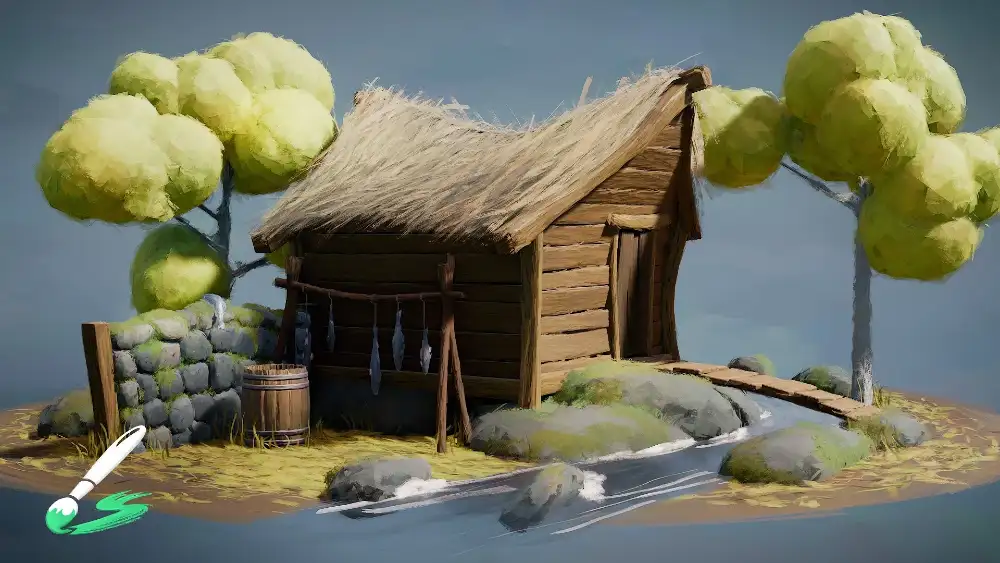
Watch the guided workshop and download the fishing hut example file
Find more extensive documentation here
Consider supporting our work and get all kinds of useful resources regarding production with Blender by subscribing to the Blender Studio
Disclaimers
The geometry generation and rendering techniques applied with this extension are computationally intensive and rely on high-end hardware specifications to allow smooth workflow.
For Blender 4.2.0 to 4.2.3 you might have to restart Blender once after installing the extension to ensure all assets are available.
Brush style previews only work for Blender versions 4.2.4 and up.
FAQ
Why does the fill layer not react to me drawing the flow curves?
Most likely you don't have a valid UV map on your surface mesh. Try doing a simple Auto-UV unwrap and adding the fill layer again.
Why is the fill layer reacting badly and inaccurately to the drawn flow curves?
Most likely your surface mesh has a low resolution. The flow requires a certain mesh resolution to be interpolated properly.
I am using Cycles for rendering and there are black spots all over the place.
This method of stylized rendering makes heavy use of overlapping transparent planes. This means Cycles need to do a high number of transparent bounces for the image to resolve nicely during rendering. To help with this setting you can use the Render Setup operator in the Advanced panel.
I'm experiencing poor performance. How can this be avoided?
This method is computationally intensive and relies on high level hardware to run smoothly. But there are a few things that can be done to avoid low perfromance.
If it's about tweaking shape parameters, then it doesn't have to do with the rendering, but is about the geometry evaluation and it just helps to keep the amount of brushstrokes and their resolution low, to reduce the amount of geometry that needs to be processed.
If just in the static case, orbiting the camera is slow, then it has to do with Eevee and keeping the amount of pixels that need to be rendered low helps most. For example you can change the Pixel Size in the Performance - Viewport settings. Samples don't help with interaction, since during that only 1 sample is rendered anyways.